Important notice

Please note that this blog is discontinued here. All the posts are also coppied to my new blog at http://boris.gomiunik.net.
Important: Due to large amount of comment spam further commenting has been disabled here. If you wish to send me a comment, plase look up the same post on my new blog and leave comment there. Thanks!
Showing posts with label SharePoint administration. Show all posts

3/08/2008

SharePoint site and multiple domains - alternate access mappings is the way

This is an update to one of my older posts - SharePoint 3 is bound to host headers - I was explaining the problem how the SharePoint binds itself to one host header and a simple trick to avoid this. There is a better way to add another host header to the web application:

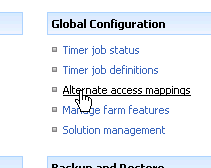
On the Server in SharePoint 3.0 Central Administration select Operations tab and select Alternate Access Mappings under Global Configuration.


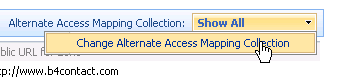
Now change the web application you want to edit public URLs for by using the dropdown on the right hand of the page
 

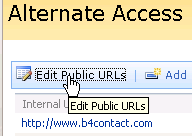
Next click Edit Public URLs
 

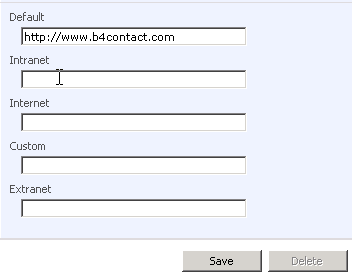
And now enter full URLs (including http:// or https://. You can add up to 5 URLs to which the web application will respond


At the end also add the host headers to the Website in the Internet Information Services manager.

Note that this works on the web application level. If you have site collections with custom URLs you can't configure multiple URLs for each of these (or if someone know the way, I'd appreciate if you left me a comment).

Oznake ponudnika Technorati: ,

1/23/2008

"Cannot find c:\...\exportsettings.xml" error when restoring with SharePoint Designer

When making a SharePoint Designer backup of a certain Windows SharePoint Services site it's creating it normally. But when you try to restore the same backup you receive the cannot find ... exportsettings.xml error. After digging a lot around I've discovered that this is actually a SharePoint Designer Bug.

This error occurs if your backup has more than 25 MB. So to move larger sites we're in trouble and we should wait for SharePoint Designer team to fix the bug? Yes. Meanwhile there is a workaround that worked for me. Suppose we want to copy the SharePoint site http://www.mysite1.com/ to http://www.mysite2.com.

We need the following:

1. Access to the server where the SharePoint mysite1 is hosted
2. SharePoint designer (you don't need it installed on the server)
3. Administrative rights to mysite2.com

And the process is as follows:

1. On the server where you have the www.mysite1.com locate the file stsadm.exe (usually in the folder C:\Program Files\Common Files\Microsoft Shared\Web Server Extensions\12\BIN). Copy the stsadm.exe to a location where you'll run it or make %path% to it or go to that folder in the command prompt.

2. Open the command prompt with the location of the file and type the following command (let's say we'll backup to c:\.

stsadm -o export -url http://www.mysite1.com -filename c:\mysite1.cmp -cabsize 1024 -includeusersecurity

This is the EXPORT backup of the site with some additional parameters:
-cabsize 1024 makes the backup file size 1024 megabytes instead of standard 25 (which is the error limit in SPD)
- includeusersecurity remembers the security settings of the sites

3. Copy the c:\mysite1.cmp file to your local computer or where you have the SharePoint Designer installed.

4. You have to have the site collection (or subsite) with deployed Blank site template on address www.mysite2.com. Open the site www.mysite2.com with SharePoint Designer and make a SharePoint Designer restore (how? Read more here)

That should have it working.

Backup, restore and migration of sites on SharePoint 3 pt. 3/3

stsadm -o export and stsadm -o import

To backup:
1. Locate stsadm.exe
2. in Command prompt type stsadm -o export -url http://[url-of-the-web-site-or-subsite] -filename [path and name of the file.dat]

To restore:
1. Create a web application and a site collection using sharepoint central administration. Or you can create a subweb in an existing site collection. In both cases you should use a "Blank site" template.
2. Locate stsadm.exe
3. In Command prompt type stsadm -o import -url http://[url-of-the-web-site-or-subsite] -filename [path and name of the file.dat]

You've probably noticed a difference from a method described n previous post is small (only export and import instead of backup and restore). Also we can see that the order of parameters and their values isn't important.

PROS:
1. You can export (migrate) a subsite
2. If you include parameter -includeusersecurity it keeps the security settings and owner information
3. It doesn't keep the list and sites GUIDs so you can use it to copy a site collection inside of the same content database.

CONS:
1. You need access to the server to run the stsadm.exe
2. It doesn't keep the SharePoint Designer's Data-View-Webparts (again you have to fix them manually - read more about it here.)
3. You loose the meta data (created and modified dates and who created it) by default.

1/21/2008

Backup, restore and migration of sites on SharePoint 3 pt. 2/3

stsadm -o backup and stsadm -o restore

To backup:
  1. On the server locate the file stsadm.exe (if you have sharepoint 2 and sharepoint 3 locate the one in the "12" folder.
  2. Open command prompt and type [path to stsadm.exe\]stsadm -o backup -url http://[url-of-the-web-site] -filename [path and name of the file.dat]

To restore: 
  1. Create a web application (but don't create a site collection)
  2. On the server locate stsadm.exe
  3. Open command prompt and type [path to stsadm.exe\]stsadm -o restore -filename [path and name of the file.dat] -url http://[url-of-the-web-site]

PROS:

It migrates the whole site collection perfectly! All data-view-webparts are preserved, all user rights, meta data, etc. are preserved).

CONS:
1, It keeps the same GUIDS of lists and sites, so you can't use it to create a copy of the site in the same content database. (Example: You have 1 web application and you want to create a copy of the site in the same site collection in the same web application)
2. You can't backup specific subsites - only entire site collection
3. You need to have access to the server to run stsadm.exe

Backup, restore and migration of sites on SharePoint 3 pt. 1/3

SharePoint Designer Backup and Restore

To backup:
  1. Open the site with SharePoint Designer
  2. Select Menu "Site" --> "Administration" --> Backup web site
  3. You can select to backup also the subsites
  4. Select where to save the backup file and write file name

To restore:
  1. You have to have the created blank site (in the same language)
  2. Open the blank site with SharePoint Designer
  3. Select Menu "Site" --> "Administration" --> "Restore web site"
  4. Browse the file from your local computer
  5. After backup is made you can delete SharePoint's temp file on site

PROS:
1. Easy backup, keeps meta data (like "Created" and "Modified" dates, "Created by" and "Modified by") - Even if restoring to different sites. Can migrate between different sub-versions of same WSS 3.
2. You don't need access to the server, just administrative rights on the site.

CONS:
1. A BIG con is that you can make a backup of the sites that have under 25 MB. Looks like this is a bug in SharePoint designer and I hope it will be fixed soon. If you are backing up a site with over 25 MB you will encounter a problem "Cannot find ..... exportsettings.xml". There is a workaround to this (I'll post that in one of my later posts).
2. It doesn't keep any custom data-views created with SharePoint Designer. After you restore and if you have any data-view-web-parts that you've created with SPD and are not working - you have to fix them. Read how to fix them here.

8/17/2007

Resolving the "Unable to display this Web Part" problem after SharePoint Designer restore

If you've restored the SharePoint site using commands Site --> Administration --> Restore site and this site had special XSLT data views you may be in for a big surprise!

You can receive the following message:

Unable to display this Web Part. To troubleshoot the problem, open this Web page in a Windows SharePoint Services-compatible HTML editor such as Microsoft Office SharePoint Designer. If the problem persists, contact your Web server administrator.

Or in Slovene language

Spletnega gradnika ni mogoče prikazati. Če želite odpraviti težavo, odprite spletno stran v urejevalniku HTML, združljivim s storitvami Windows SharePoint Services, kot je program Microsoft Office SharePoint Designer. Če težave ne morete odpraviti, se obrnite na skrbnika spletnega strežnika.

The problem is that while restoring the site, SharePoint designer doesn't correct the GUIDs of lists being used. For example: You're having an XSLT data view of a list called Contacts. When restoring SharePoint designer creates the list with a new GUID, but it uses the old GUID (from where the backup was made) of the list. The solution is simple: Fix the GUIDs of lists used in dataviews:

1. Open the Manage content administration page of your site (http://server/site/_layouts/mcontent.aspx)

2. Copy the shortcut of the list being used in XSLT to clipboard

3. In the URL you'll find the new GUID of a list between brackets ( in http://server/site/_layouts/ListEdit.aspx?List={89D731E5-0538-4999-B4AF-D7A5D9EA781F} the GUID is 89D731E5-0538-4999-B4AF-D7A5D9EA781F

4. With SharePoint Designer open the page with XSLT data view and search for term ListID in the code.

5. Select the value of the ListID parameter. It should be the GUID of the list (either in ListID="....." or in the same tag, look for GUID-like numbers.

6. Prest CTRL+H for Search and Replace with the value still selected. It will automatically populate the "Find what" field with it. Now paste the copied URL with GUID in the "Replace with" field and remove all but the GUID. Make sure you have the "Find in Source Code" option checked.

7. Now just press the "Replace all" button and your XSLT data view will magically come to life :).

I hope that this bug will be fixed with next version of SharePoint Designer, or maybe can develop some kind of plugin for that procedure to speed up the process for all the pages. I know that with FrontPage this wasn't happening.

7/17/2007

Page File on the server too high? Alternative to IISRESET

I've already been explaining in my previous post about application pools how to save on page file by reusing application pools.

When you need to release page file size and memory consumption, you can run iisreset. This will kill each application pool for each site and therefore release the memory (untill the site is revisited).

Joel Oleson is describing an alternative way to release the application pool and cache that we don't need without the 7-seconds-long iisreset. Below quoting from Joel's blog:

cscript c:\windows\system32\iisapp.vbs /a "%SharePointAppPool%" /r

Where %SharePointDefaultAppPool% is the app pool you are wanting to cycle.

7/09/2007

Unable to create SharePoint list from Excel (import spreadsheet)

If you're trying to import spreadsheet to create a SharePoint list in SharePoint 3.0 you can receive some errors. This especially occurs if you're using Excel 2003.

Thanks to Matjaž from Portorož, there is a resolution to this problem: update office 2003 to at least SP2 and the problem will go away.

7/05/2007

SharePoint 3 is bound to host headers

With the old SharePoint we were using host headers much more freely. When the site was extended, all you needed to do is add additional host headers in the Internet Information Services console.

With SharePoint 3 the story is a bit different. When you create a site with host header through SharePoint Central Administration, that site is bound to the host header you created it with. This might cause problems with intranets (for example internal domain is one and external is other). Below is one solution (that I confess, I still have to try out) that might solve this problem:

Modifying ports and host headers on SharePoint

I also use the following trick: When the site is created, I go to the IIS administration console and add the desired host headers. Usually this will redirect to the original host header. Example: site is created with www.piflar.com, I've added also host header piflar.com. So when I visit http://piflar.com it automatically redirects to www.piflar.com.

The problem might occur with intranet sites. Internal domain can be http://companyweb2 and external http://intranet.company.com:444. If you visit the second url and redirects you to companyweb2 naturally you won't be able to open the site.  

The solution can be that you add the default.aspx after the url. So if you visit http://intranet.company.com:444/default.aspx you won't get redirected and you can see the SharePoint.

6/11/2007

Reinstalling SharePoint (WSS3) to run under SQL server 2005 instead of Windows internal database (##SSEE)

Recently I was fixing on one server an installation of Windows SharePoint Services that has gone wrong. Even though we've had SQL server 2005 installed correctly, WSS3 installed its own Windows internal database (##SSEE) and started using it. I thouhght a simple uninstall and reinstall of WSS would do the trick. But it didn't. After uninstalling and trying to reinstall WSS3 at the beginning didn't even offer the option to configure it to SQL server (the step in WSS configuration where is asking you which is the location of configuration database,...).

After a couple of retries (also uninstalling SSEE and a lot of reading on the web to my horror I've found one sentence "you'll need a clean install of Windows Server 2003."

.

This was a bit tough because of existing users and some other parameters. After digging a bit deeper and combining knowlege of couple of experts' blogs I've managed to successfully reinstall WSS3 without Windows Internal Database (SSEE) and into SQL server 2005.

Before I write how I did it, let me clear that this solution worked for me. I'm presuming that you don't have anything else installed in SSEE and I'm not responsible for any errors that might happen if you're following the same procedure. So please before making anything on a production server - backup, backup, backup. This procedure includes messing with Windows registry!

Here goes:

1. Copy all the SharePoint Sites to another temporary folder
Using
 
stsadm -o backup -url http://<site_collection_url> -filename <location and filename>

 
copying backup files to new server and
 
stsadm -o restore -url http://<site_collection_url> -filename <location and filename>

 
on the temporary server worked the best. It kept all the relations and all the custom formatting on all the sites.

2. If these are productions sites modify DNS or forwarding to point to the temporary server

3. Here's where the "fun" begins: Delete all the SharePoint Web applications

4. Uninstall Windows SharePoint Services through Control Panel

5. Uninstall Windows internal database (##SSEE)
Connex' Copper Coins has it described in his blog here. Just in case I'm writing a short ressume:

Under HKEY_LOCAL_MACHINE\SOFTWARE\Microsoft\Windows\CurrentVersion\Uninstall click different GUIDs untill in the right pane you see under "Display name" Microsoft SQL 2005 Embedded Edition". Under that registry copy the value under "UninstallString". Run the command prompt window, paste the command AND add "CALLERID=OCSETUP" at the end of commend line. For example: MsiExec.exe /X{BDD79957-5801-4A2D-B09E-852E7FA64D01} CALLERID=OCSETUP.EXE.

(ressumed from Connex' Copper Coins)

6- Delete all files and folders under %windir%\SYSMSI\SSEE

7. delete all and folders files under %Programfiles%\Common Files\Microsoft Shared\web server extensions\12

8. Using reged backup and delete in registry everything under HKEY_LOCAL_MACHINE\SOFTWARE\Microsoft\Shared Tools\Web Server Extensions\12.0\

9. The previous step also deleted the "Server language" entry. so Using notepad create a .reg file with the following text:

Windows Registry Editor Version 5.00
[HKEY_LOCAL_MACHINE\SOFTWARE\Microsoft\Shared Tools\Web Server Extensions\12.0\ServerLanguage]
"1033"=""

and run it to restore the "Server Language" entry needed for Windows SharePoint Services installation.

With that I have removed every trace (or at least enough) of Windows SharePoint Services 3.0 from the server. Now I was able to re-run the WSS 3 setup and and it offered me the option for nstalling it into SQL server 2005 and without SSEE.

This is how you can have it done without making a clean install of Windows Server 2003.


If you need help installing WSS, I recommend the following article on technet:

http://technet2.microsoft.com/windowsserver/WSS/en/library/6181fe5b-90ca-40cf-aade-abd59cf3c9071033.mspx?mfr=true
6/04/2007

Application pool for each SharePoint (WSS) site?

After a long time I'm returning with some SharePoint administration and deployment topics.

One of them is Web application pools with SharePoint. When creating more top level sites with each its own application pool, you can seriously think about how this will affect the server performance.

With around 50 SharePoint sites (and app pools) running we've increased the page file from 1 GB to almost 4 GB.

So planning here is very important. Think about how many web applications you'll need. If you'll need many, think about grouping web applications to application pools.

The difference in performance is very obvious.

If anyone has similar experience, I'll be more than happy to read about it in the comments to this post. :)

5/04/2007

"Cannot connect to the configuration database" and SharePoint

Today I've received another of the cases when SharePoint (v2) couldn't connect to the configuration database. This can be a common problem but it's not so horrible to solve it.

The reason for this is that SharePoint lost the connection to the database.

Reasons may be the following:

  • SQL or WMSDE database may not be running

  • IIS may be running in IIS 5.0 isolation mode
  • The account for connecting to SQL or WMSDE might be gone or with changed password
  • update - SQL Server Embedded Edition might not be running (check services) - Thanks, deanoc (see the comments)

The solution to these is on the following link:

http://support.microsoft.com/kb/823287/en-us

But I've found another reason that could be. Simple: The SQL is running, credentials are also ok and IIS isn't in the 5.0 isolation mode. The problem may occur if sharepoint simply can't find the database. Reasons for this may be many: the database has moved, dns has changed, ... In my case was the later. By changing the DNS server in the network we've had to add one more record manually to point to the correct one and the sites started to work.